Getting started
From signing up to a live job with the programme laid out — about twenty minutes, most of it deciding on a template.
Updated 2 September 2026
This walks through the whole of your first day on BuildFlow: creating the account, setting the company up, putting your first job on, and getting the client looking at it. Nothing here needs a paid plan.
Before you start
Have one live job in mind — ideally one that has started but isn't nearly finished, so there's something to look at. If you have the proposal or schedule of works you sent the client as a PDF, keep it to hand: on Pro, FlowAI can read the programme straight out of it.
The free plan is not a trial
One project, one client, no team members, no clock. It is enough to run a job end to end. The one thing to know is that Free counts every project you have ever created, including finished ones — so it is a way to run a job, not a way to run a business one job at a time.
1. Create your account and company
- 1
Sign up
Name, email, password. You will get a confirmation email — the link signs you straight in.
- 2
Create the company
Company name, phone, email and address. This is what your clients and team see, so use the trading name rather than the limited company name if they differ.
- 3
Add your logo and colour
Company settings. The logo and brand colour appear in the sidebar, across the project workspace, and on every invite and join screen a client sees. It is the difference between the client thinking they are using your system and thinking they are using someone else's.
Registration number, VAT number, insurance and qualifications are optional now but worth filling in before your first handover — they are pulled into the handover pack.
2. Put the first job on
Projects → New project. You have two ways in.
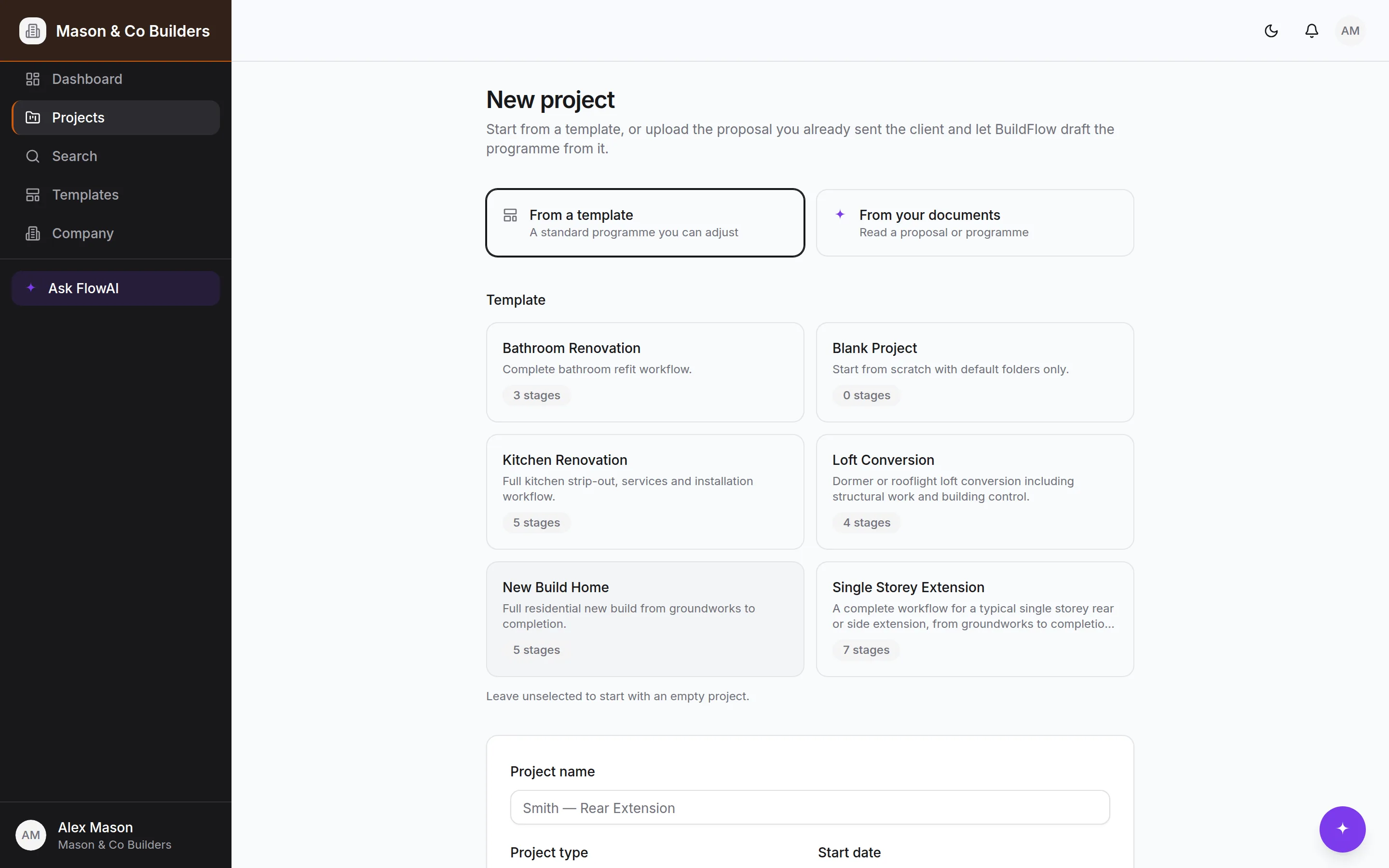
From a template
Pick the closest — Single Storey Extension, Kitchen Renovation, Loft Conversion, New Build Home, Bathroom Renovation, or Blank. BuildFlow generates the stages, tasks, checklists, milestones and the building-control inspection schedule in one go. It is a starting point, not a straitjacket: reorder the stages, move the dates, delete what doesn't apply.
From your documents
On Pro, upload the proposal, quotation or programme you already sent the client. FlowAI reads it and drafts the stages, tasks, milestones and inspections from what the document actually describes. You get the draft as an editable form — change what it got wrong, delete what you don't want, then create the project. Nothing is written to your account until you press the button.
PDFs are read natively, including scanned ones, and a photograph of a printed programme works. Up to 15MB per file.
Either way, fill in the project name, type, address, start date and target completion. The address matters more than it looks — it is on the client's screen and in the handover pack.
3. Check the programme
Open the Timeline tab. You are looking for three things:
- The stages are in the order you actually work, and the dates are plausible.
- The milestones are the ones you would tell a client about — watertight, first fix complete, that sort of thing.
- The building-control inspections match what your job actually needs.
Fix it now rather than later. Everything downstream — tasks, the client's view, the handover pack — hangs off these stages.
4. Add your team
Company settings → Team. Invite employees, subcontractors and admins into the company once, by link or QR code, then put them on the projects they're working. A subcontractor sees the jobs they are on and nothing else.
The free plan has no team seats — it is you and one client. Basic and above have five and twenty respectively.
5. Bring the client on
Project → Team → Invite client. You get a link and a QR code. The client scans or clicks, makes an account, and lands inside their project — no admin from you, no shared logins.
Before you send it, spend two minutes deciding what they should see: which milestones, which documents. The site diary is never visible to clients, and neither is anything financial.
6. Get into the habit
BuildFlow is worth what you put into it, and the habit that matters is small: a diary entry and a couple of photos at the end of each day, from the phone, in the van. Two minutes. It is what makes the record worth something when a question comes up eight months later, and it is what stops the client ringing.
Ask FlowAI
On Pro, the assistant is pinned to the bottom-right of every screen and knows the job in front of it. "What's left before we can book the pre-plaster inspection?" is a fair question to open with.